Connect Stripe or Square So You Can Get Paid
Folio Anywhere never holds your money. Every payment a payer makes goes straight to your own Stripe or Square account. We provide the folio, the payment link, the record-keeping, and (depending on your plan) a small platform fee on top of your processor’s own fees.
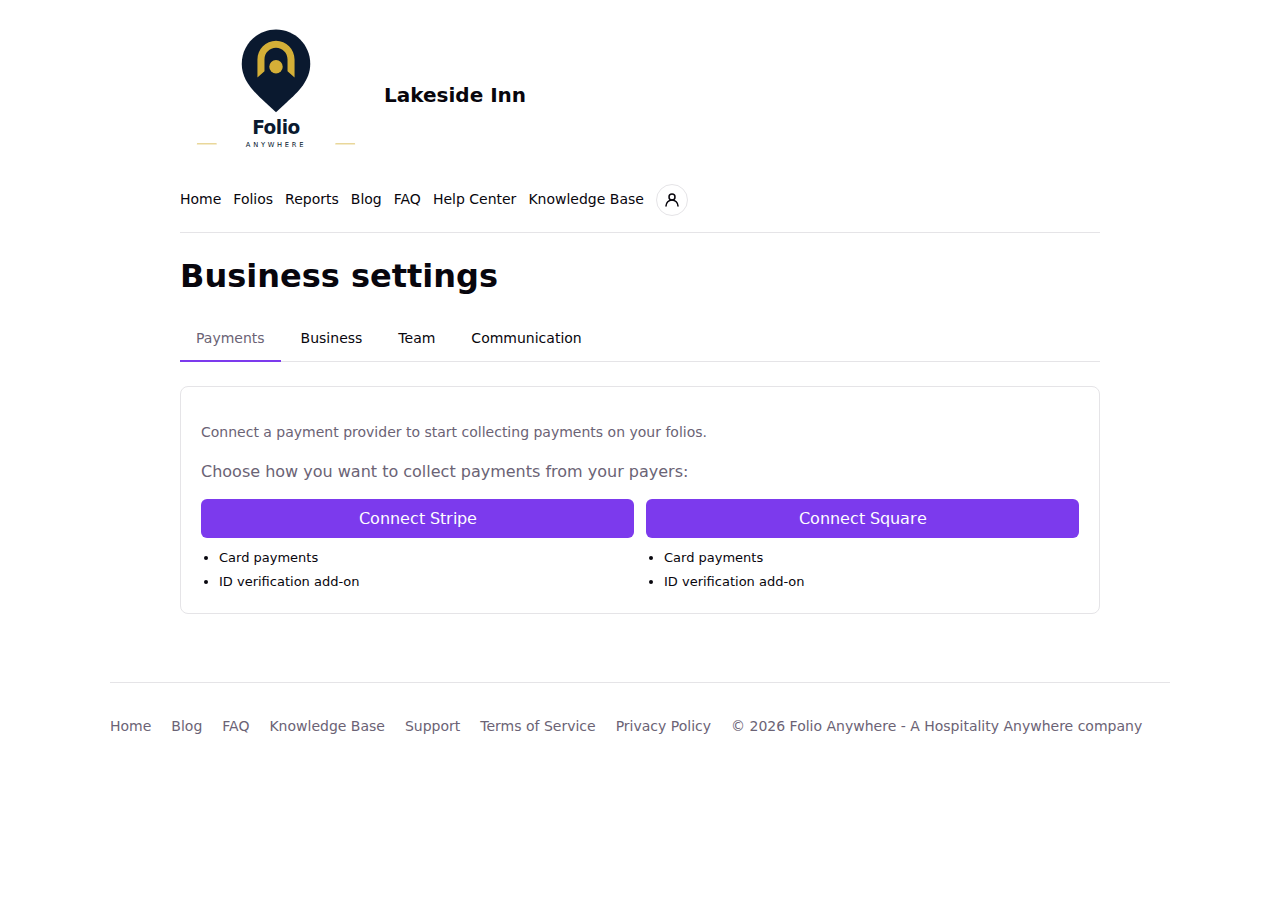
Why you need to connect a payment provider
Before you can collect any real payment, your business needs its own connected Stripe or Square account. This is a one-time setup step, and you only need one of the two, not both.
Choosing between Stripe and Square
Either works fully with Folio Anywhere: folios, payment links, refunds, reporting, and the optional ID verification add-on all work with either provider. Choose whichever you already use, or already have a business account with:
- Stripe: a good fit if you don’t already use Square and don’t mind a slightly longer one-time setup (Stripe verifies your business details, banking, and identity directly).
- Square: the faster path if you already have a Square merchant account, since there is no separate verification step to complete.
You are not locked in: you can disconnect your current provider later and connect the other one instead (see “Switching providers later” below).
How to connect Stripe
- Go to Settings, Payments (this step is also offered right after you first create your business).
- Click Connect Stripe.
- You will be redirected to Stripe’s own onboarding flow. Fill in your business details, banking information for payouts, and identity verification as Stripe asks for them.
- You can leave partway through and come back later: Folio Anywhere will show “Continue onboarding” until Stripe confirms everything is complete.
- Once Stripe finishes verifying your account, charges are enabled and payers can start paying you directly.
How to connect Square
The steps are slightly different depending on whether you already have a Square account.
If you already have a Square account:
- Go to Settings, Payments.
- Click Connect Square.
- Log in to your Square account and authorize Folio Anywhere when Square asks. Folio Anywhere automatically uses your Square account’s primary location, so there is no separate location picker or verification step.
- As soon as you authorize access, you are done. Charges are enabled immediately, and payers can start paying you directly.
If you don’t have a Square account yet:
- Sign up for Square first at squareup.com/refer/HAANYWHERE.
- Once your Square account is set up, come back here and follow the same steps above.
Optional add-ons on the Payments page
Once a provider is connected, the Payment settings also offer:
- Card on file: an owner can allow payers to keep their card on file for a given folio when they pay, so you can charge it later for additional charges. See Keeping a Payer’s Card on File for the full guide.
- ID verification add-on: shown here as a feature of both providers. Enable it from Settings, Business profile. See Identity Verification for Payers and Guests for the full guide.
Who can manage payments?
Only an owner or super user can connect, disconnect, or continue onboarding a payment provider. This is deliberately locked down, since it controls where your money goes. The card-on-file setting is owner-only.
Switching providers later
Already connected to one provider and want to switch to the other? On the Payments page, click Disconnect on your current provider first, then the Stripe/Square choice will reappear so you can connect the other one. Refunds on payments you already collected still route back through whichever provider actually processed them, even after you switch.
What if I haven’t connected a payment provider yet?
You can still create folios and save them as drafts, but sending, emailing, and printing them is unavailable until your Stripe or Square account is connected and can accept payments. If you try, Folio Anywhere shows a “Payments not set up” message with a link to your payment settings.