Creating, Sending, and Getting Paid on a Folio
A folio is hospitality terminology for a running account or tab, as opposed to a single fixed invoice. You can keep adding charges to a folio after it has been sent, even after it has been paid, for incidentals, rather than issuing a brand new bill every time. It works just as well when all you need is a single invoice.
A quick note on terms: the payer is the person or company the folio is addressed to, the one who pays. The guest is the person who is actually staying, when that is someone different.
Creating a folio
- Click “+ New folio” from your Folios list.
- When asked “How would you like to create this folio?”, choose “Manual entry”. (To start from a file instead, choose “Upload a file” and pick a JSON file in the accepted format; the form is then filled in with what could be read from it, for you to review. A “Download JSON template” link shows the expected format.)
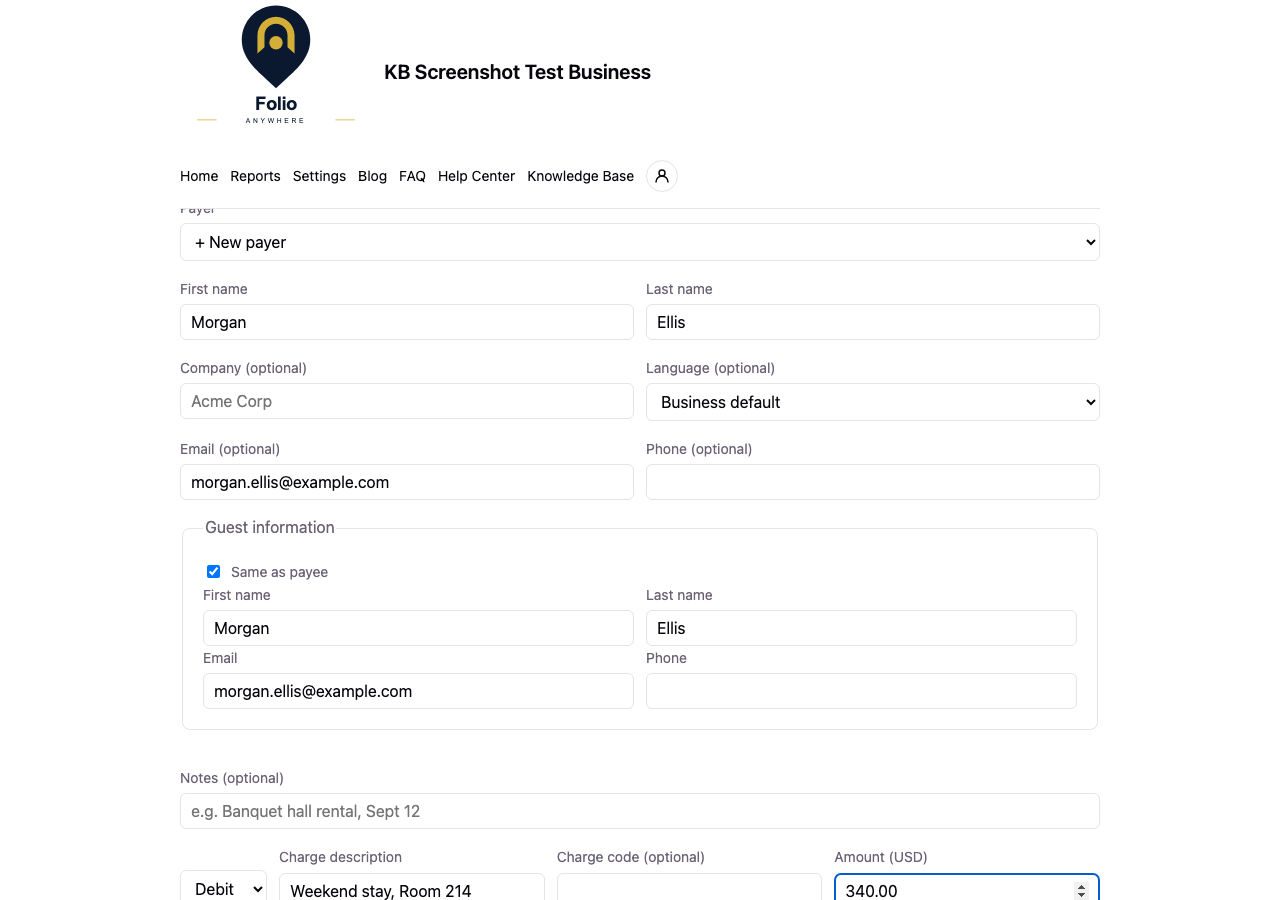
- Choose an existing payer, or add a new one with their first and last name, company (optional), language, email, and phone. The payer’s language controls which language their folio documents and payment link are in.
- Set the guest information. By default the guest is the same as the payer. If someone else will actually be staying, uncheck “Same as payer” and enter the guest’s first and last name (email and phone are optional).
- Add a charge description (your past descriptions autocomplete to save time), an optional code such as a room or accounting code, and the amount. You can add several line items.
- Owners and super users can also add a “Credit” line, which records an offline or manual payment such as cash, a check, or an existing deposit.
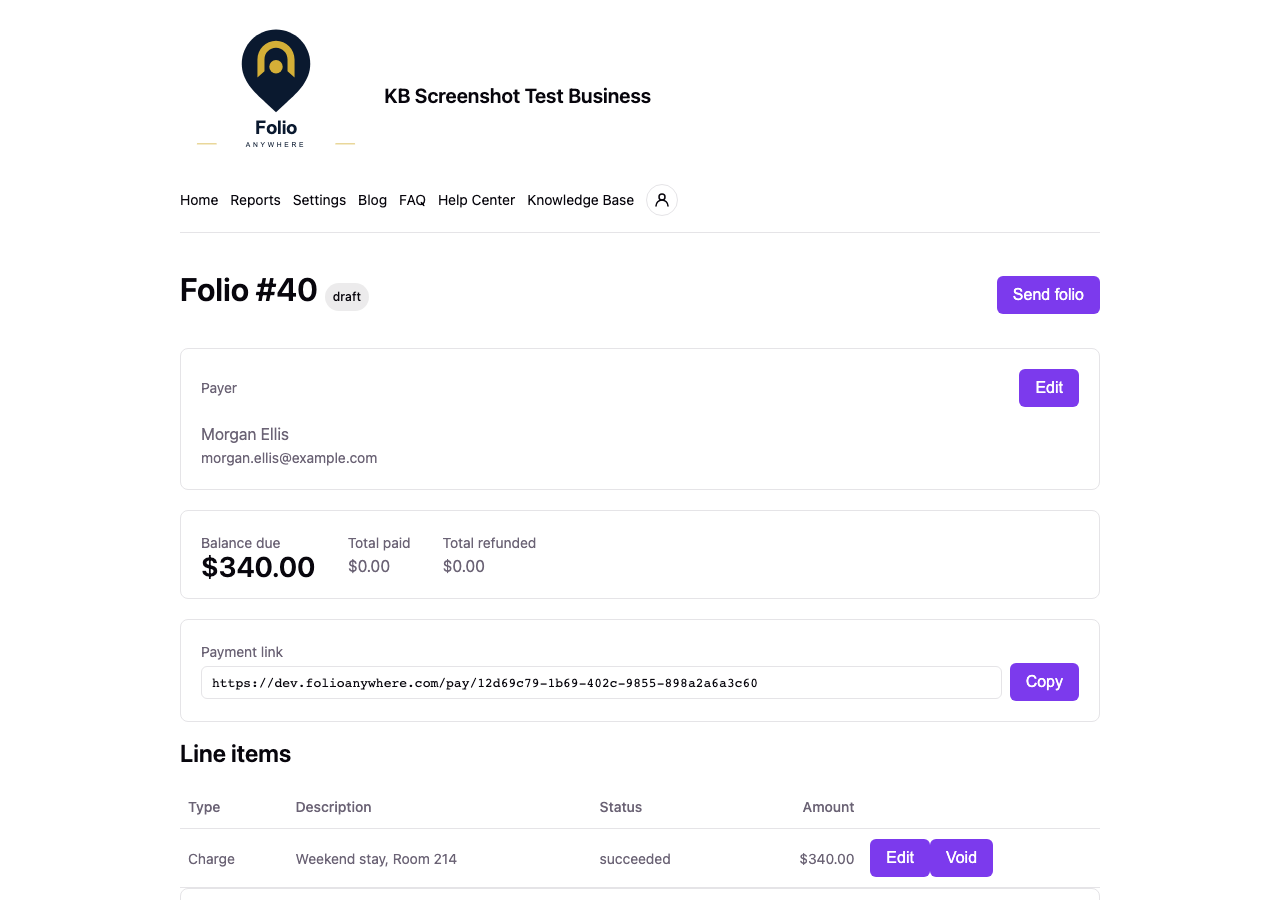
- Add any notes and click “Create folio”. The folio is saved as a draft.
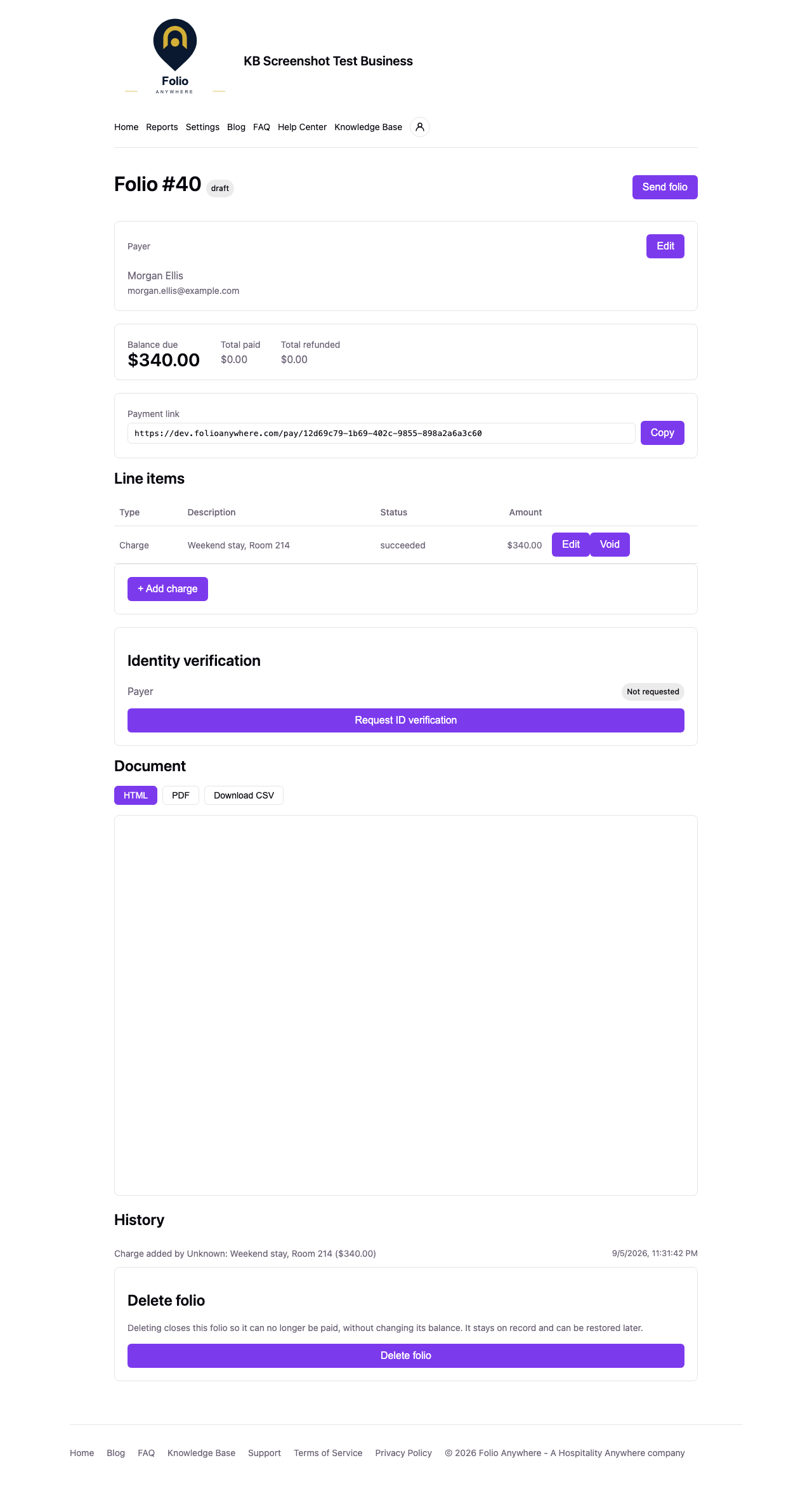
A “Folio #N created” panel then confirms the new folio’s number and offers “View folio” (to open it) or “Create another folio”.
Sending a folio
From the folio page, click “Send folio”. Sending emails the payer a secure link to their folio and marks it open. They do not need to create an account, download an app, or log in: they simply open the link, review the folio, and pay. You can also copy the payment link directly from the folio page to send it yourself.
Sending, emailing, and printing a folio are only available once your business has a payment provider connected that can accept payments. Until then, “Send folio” and “Print folio” show a “Payments not set up” message with a link to your payment settings. See Connect Stripe or Square So You Can Get Paid.
Paying by bank (ACH)
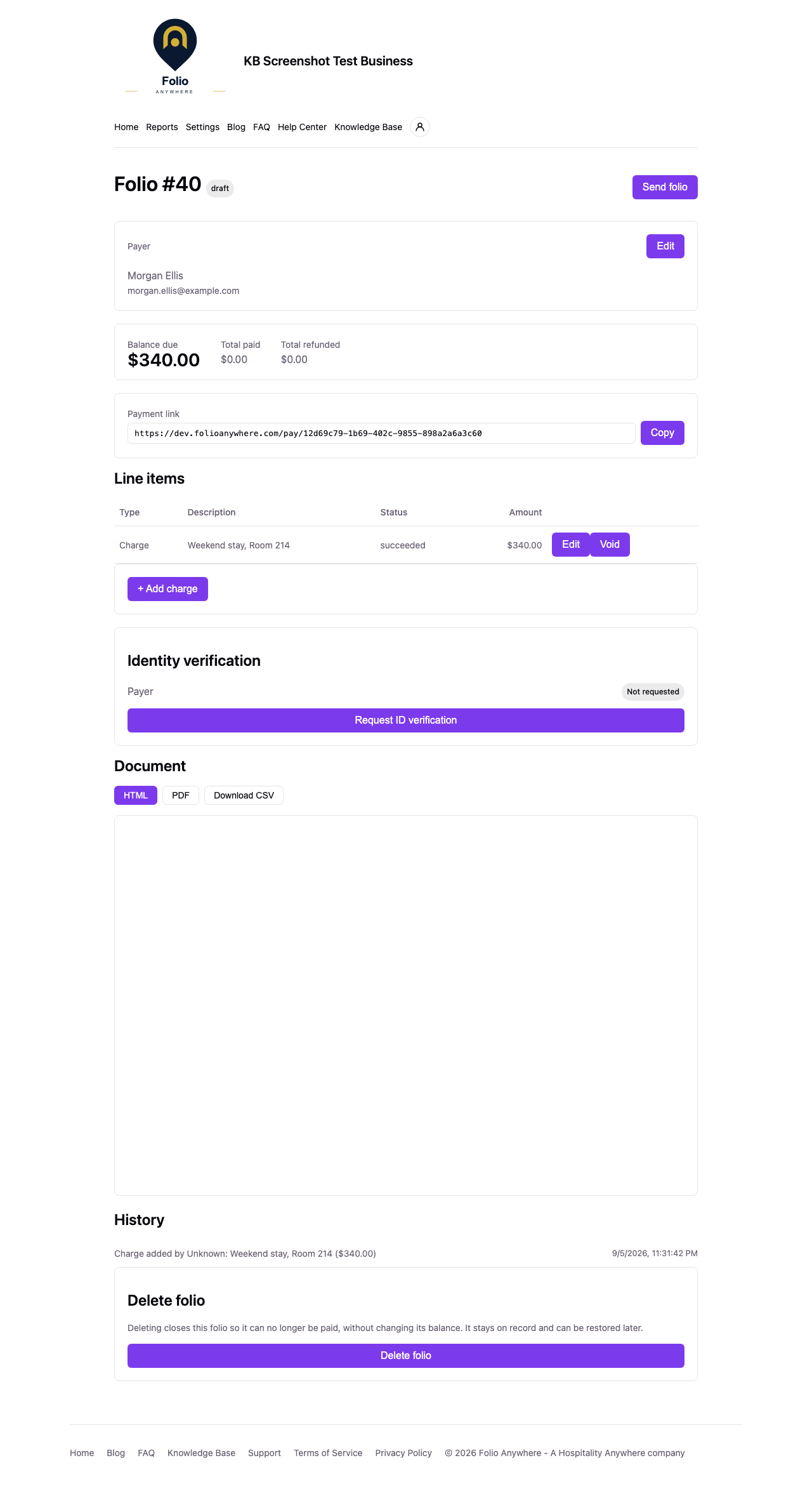
For folios in US dollars, payers can pay by card or straight from a US bank account (ACH). They connect their bank securely on the payment page. A bank payment takes a few business days to clear: until it does, the folio still shows the balance as due, the payment page tells the payer their bank payment is processing (so they can’t pay twice), and the receipt is emailed once the payment clears. If the bank rejects it, the balance simply stays due and the payer can pay again from the same link.
There is nothing to turn on: once your payment provider is connected, payers can pay by card, Apple Pay, Google Pay, or bank (ACH), and Folio Anywhere sets each one up with your provider for you. On Stripe, the bank option appears as soon as Stripe approves your account for bank payments, which usually happens right after you connect.
Adding more charges later
You can add additional charges to a folio at any time, even after it has already been paid. That is exactly what the running tab model is for, such as adding an incidental after a guest checks out. Adding a charge to a paid folio reopens it, and the payer is emailed about the updated balance.
Recording a manual payment
Owners and super users can record an offline payment, such as cash or a check, by adding a “Credit” line item to a draft or open folio. This closes out part of the balance without a card payment. Refunds are not available against manual credits, since there is no gateway transaction behind them.
Refunds
Owners and super users can issue a full or partial refund directly from a folio, against any successful card payment. A refund adds back to the balance due, because the money has gone back to the payer while the charge is still on the folio. If the payer shouldn’t owe that amount anymore, issue the refund first, then void or edit down the charge it was for, and the balance returns to zero.
Some refunds (most Square refunds, for example) are pending for a short time before the provider settles them. A pending refund already counts toward the balance and can’t be refunded a second time. If the provider rejects it, it drops out again on its own. Refunded money routes back through the provider that processed the original payment, even after you switch providers.
Keeping a card on file (incidentals)
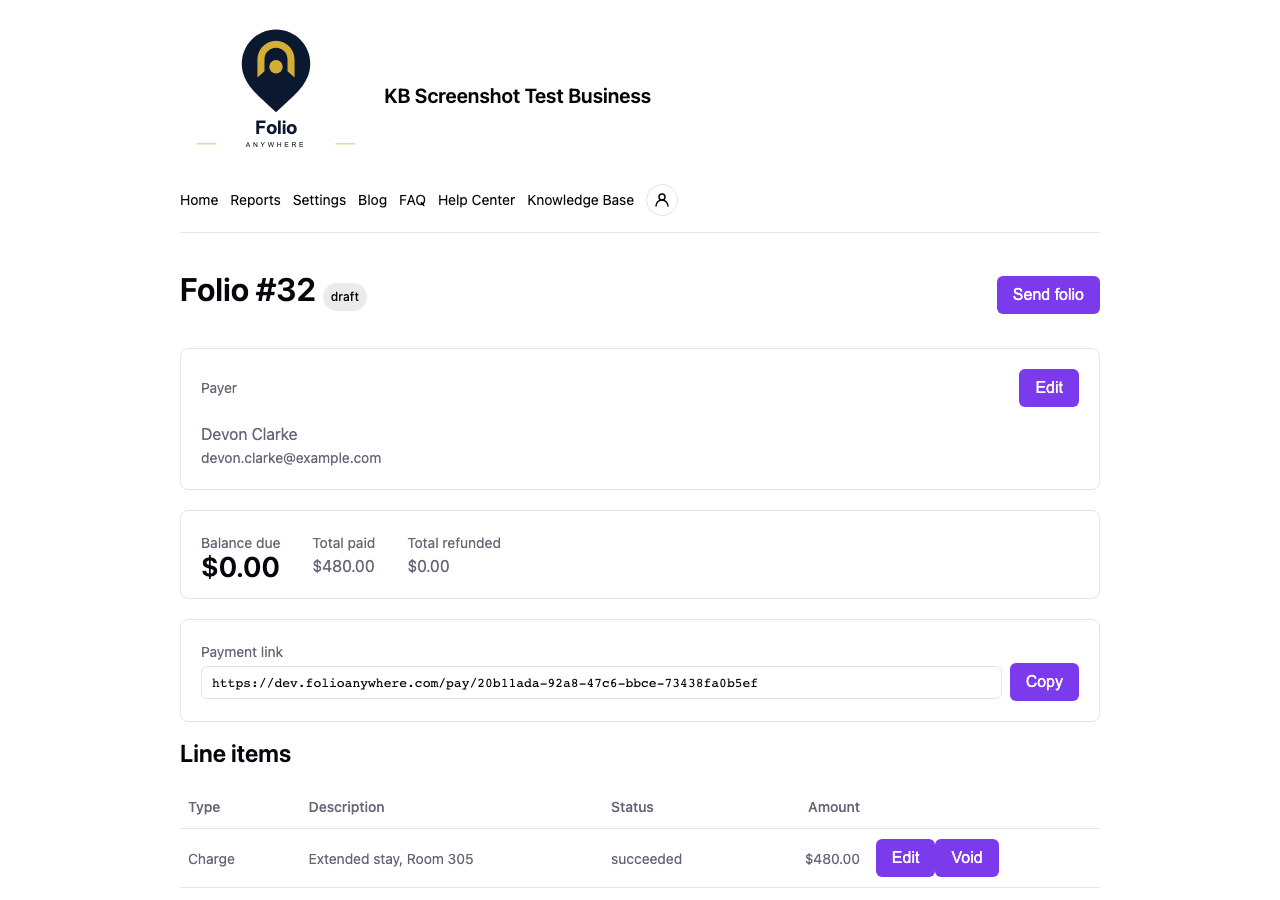
When your business has enabled card on file (in Settings, Payments) and the payer kept their card on file when paying, staff see a “Card on file” panel on the folio. An owner or super user can charge that card for damages or extra charges discovered after the stay. Every such charge is best-effort: the card issuer can always decline, and if that happens the charge stays on the folio and the payer is emailed your ordinary payment link. The payer’s card can also be removed at any time.
See Keeping a Payer’s Card on File for the full guide.
Identity verification
If your business has the ID verification add-on enabled, a folio will show an “Identity verification” panel with a status for the payer and, when the guest differs, one for the guest too. From it, staff can request a Stripe-hosted identity check, or reuse a prior verified result at no charge.
See Identity Verification for Payers and Guests for the full guide, including billing and privacy details.
Folio statuses
- draft: created but not yet sent
- open: sent, awaiting payment
- paid: balance fully paid
- partially refunded: a partial refund has been issued and nothing is left to pay
- refunded: the payment has been refunded in full and nothing is left to pay
A folio with a balance due is open, even after a refund.
Deleting a folio is a soft delete: it stays on record, can no longer be paid, and shows as “closed” with a “deleted” badge. An owner or super user can restore it later, which re-sends it to the payer and shows its real status again (open, paid, and so on), since deleting never changes the folio’s underlying status.
Documents
Every folio is a clean, shareable document, viewable in-app, downloadable as a PDF, or exportable as a CSV. Pro businesses can brand it with their own logo, and every business can set a contact email shown on it. The same document is the one emailed to the payer and the one the payer sees on the payment page. Voided line items are excluded from payer-facing documents.